
Mastering the Human Form with Procreate Anatomy and Blending Tricks
Why Procreate Anatomy Drawing Tips Are the Foundation of Great Digital Art
Procreate anatomy drawing tips can transform the way you draw the human figure — whether you’re just starting out or trying to break through a frustrating skill plateau.
Here are the core techniques to get you started right away:
- Start with gesture, not outlines — draw the line of action first to capture movement
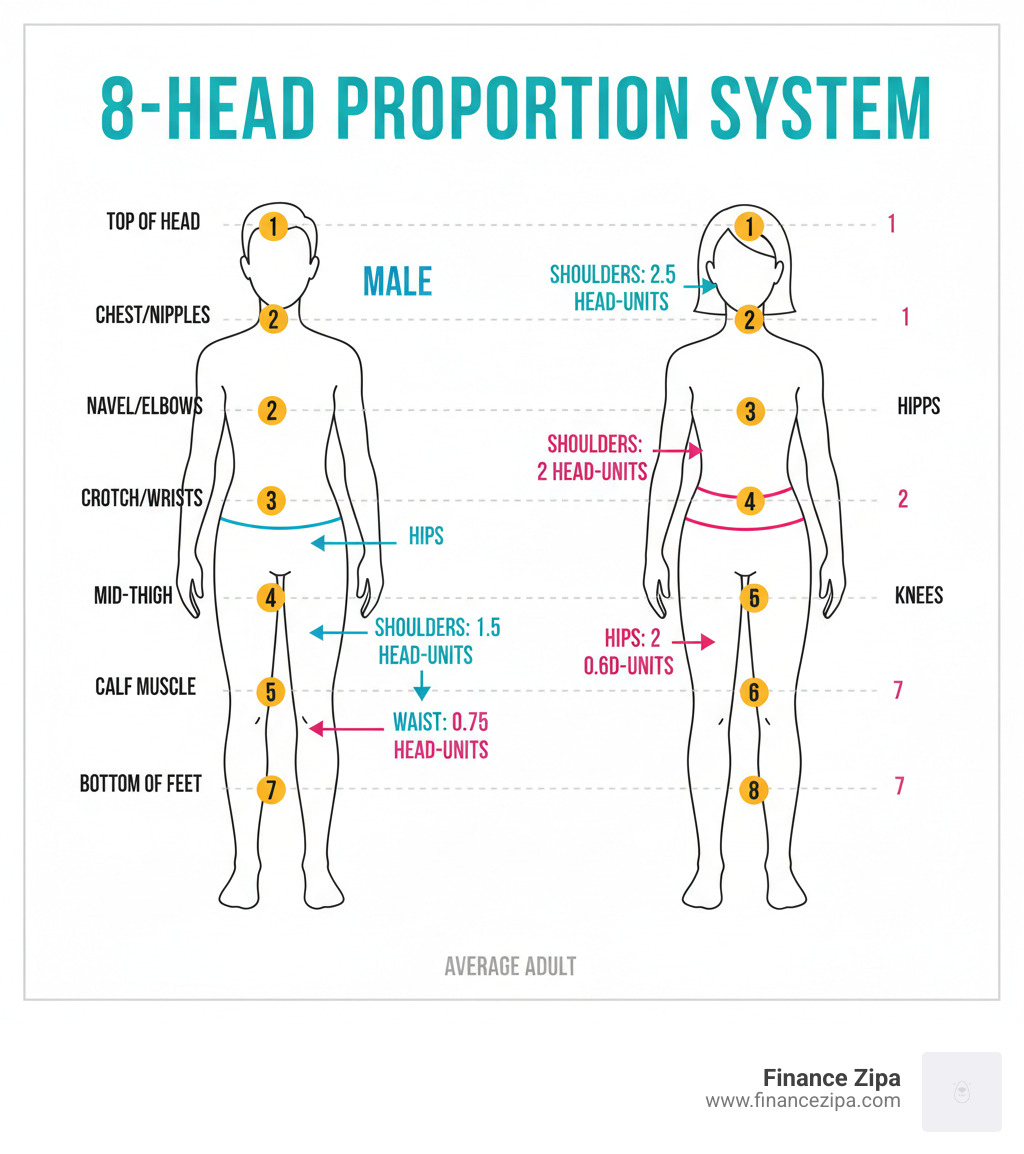
- Use the 8-head proportion system — the average adult figure is 7.5 to 8 heads tall
- Build with basic shapes — block in circles, cylinders, and boxes before adding detail
- Use Procreate layers — keep your rough sketch, linework, and color on separate layers
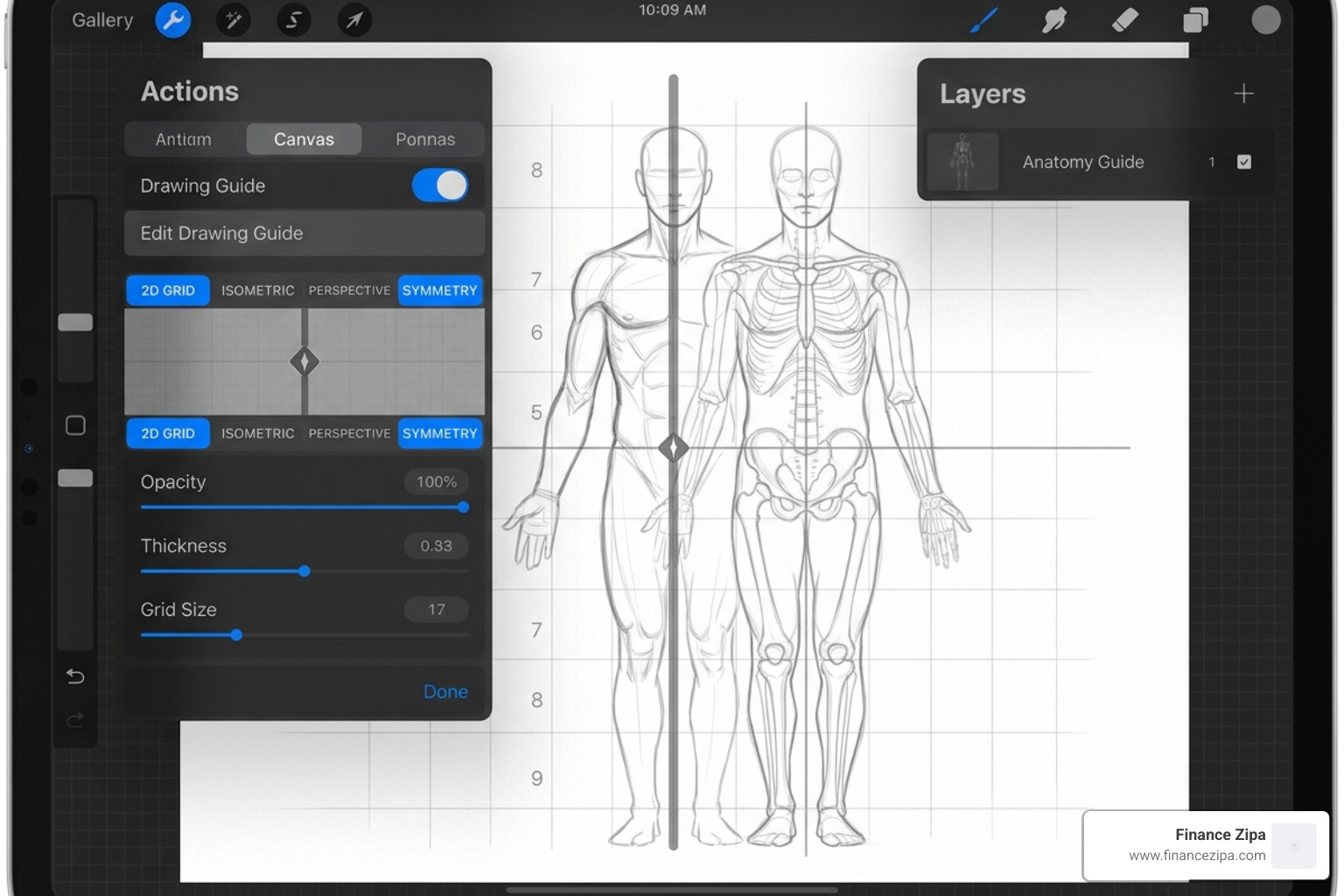
- Enable Drawing Guides — use the Symmetry tool and 2D Grid for balanced proportions
- Trace anatomy references — import a photo, create a new layer on top, and trace muscle groups
- Practice timed gesture sketches — aim for 20 to 50 quick sketches daily at 30 to 60 seconds each
These are the building blocks. The sections below go much deeper into each one.
Drawing the human body is widely considered one of the hardest skills in art. The proportions are tricky. The poses can look stiff. And when something is slightly off, most viewers notice immediately — because the human figure is the most familiar shape we know.
Procreate makes this challenge more approachable. Its layering system, pressure-sensitive brushes, symmetry tools, and reference window give digital artists a powerful toolkit that traditional media simply can’t match. But the app alone won’t fix the underlying fundamentals. You still need to understand why a figure looks right or wrong.
That’s what this guide is about — combining solid anatomy principles with Procreate’s specific features so you can draw figures that feel alive, balanced, and dynamic.
Essential Procreate Setup for Accurate Anatomy
Before we put pencil to glass, we need to set up our digital workspace. A poor setup can lead to pixelated lines or a lack of control over your strokes. We recommend a canvas size of at least 3000x3000px at 300 DPI. This provides enough resolution for fine details and ensures that if you decide to print your masterpiece later, it won’t look like a blurry mess.
One of the most powerful procreate anatomy drawing tips is utilizing the Drawing Guide. Go to the Actions menu (the wrench icon), tap “Canvas,” and toggle on “Drawing Guide.” From here, you can select “Edit Drawing Guide” to choose between a 2D Grid or Symmetry. The 2D Grid is perfect for keeping your 8-head proportion marks level, while the Symmetry tool is a lifesaver for front-facing portraits or static poses where you need the eyes, shoulders, and limbs to match perfectly.
For the actual drawing, we love the Technical Pencil or the 6B Pencil found in the Sketching brush library. These mimic traditional graphite and respond beautifully to the Apple Pencil’s pressure and tilt, allowing for light construction lines that you can later darken as you commit to the form. For more structured learning on how to set up these initial studies, check out My anatomy – Learn with Procreate®.
Customizing Brushes for Figure Drawing
To master anatomy, your brushes need to feel like an extension of your hand. We suggest diving into the Brush Studio settings to tweak Pressure Sensitivity and Taper. A brush that tapers at both ends is essential for drawing “rhythm lines”—those long, sweeping strokes that define the flow of a limb.
You can also use Stamp brushes to speed up your workflow. Many professional illustrators create custom stamps of basic shapes like rib cages or pelvises to block out a figure’s “chassis” before refining the anatomy. When it comes to the finish, the Smudge tool combined with a Soft Blend brush allows you to transition between muscle groups smoothly, while a Hard Airbrush is better for defining sharp “bony” edges like the collarbone.
Utilizing Reference Windows and Layers
Never draw anatomy from memory alone—even the pros don’t do it! Use the Reference Companion (Actions > Canvas > Reference) to keep a photo or a 3D model visible in a floating window while you work. This keeps your main canvas clear while giving you a constant guide for muscle placement.
Organization is also key. We use a non-destructive layering workflow:
- Layer 1: Gesture. Low-opacity, loose lines.
- Layer 2: Construction. Simple 3D shapes (the “mannequin”).
- Layer 3: Anatomy. Muscles and bony landmarks.
- Layer 4: Final Linework. Clean, confident strokes. By using Layer Groups and clear naming conventions, we can toggle visibility to check our underlying structure at any time.
Core Proportions and the 8-Head System
The “8-Head System” is the gold standard for drawing the “heroic” or idealized adult figure. In this system, the total height of the body is exactly eight times the height of the head. While real people are often closer to 7 or 7.5 heads tall, starting with 8 heads helps beginners avoid the common mistake of drawing the legs too short.
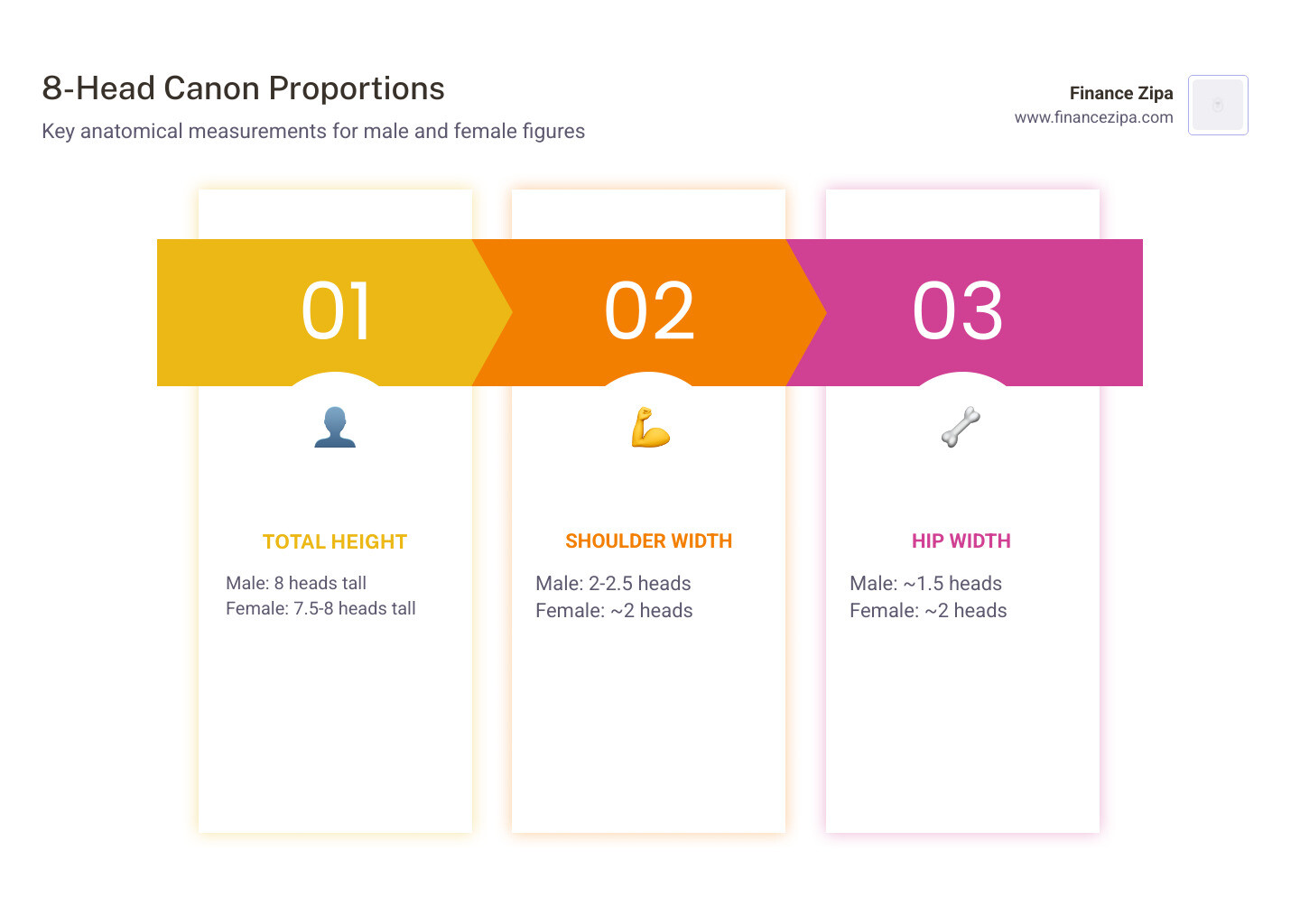
| Body Part | Male Proportions | Female Proportions |
|---|---|---|
| Total Height | 8 Heads | 7.5 – 8 Heads |
| Shoulder Width | 2 – 2.5 Heads | ~2 Heads |
| Hip Width | ~1.5 Heads | ~2 Heads |
| Arm Length | Reaches mid-thigh | Reaches mid-thigh |
| Torso Length | ~2 Heads | ~2 Heads |
Using these procreate anatomy drawing tips ensures your figures don’t look like “paper dolls.” For instance, did you know the elbows usually align with the bottom of the rib cage, and the wrists align with the crotch? Keeping these landmarks in mind prevents the “noodle arm” syndrome. For more on perfecting these measurements, see Anatomy Drawing Tips: Perfect Your Figures – Wingfox.
Identifying Key Bony Landmarks
Muscles move, but bones are the anchors. To make your drawings look realistic, you must indicate where the skeleton is close to the surface. We call these “bony landmarks.”
- The Seventh Vertebra: That little bump at the base of the neck. It’s the starting point for your spine line.
- The Scapula Spine: The “wings” on the back.
- The Iliac Crest: The top of the hip bone, crucial for showing how the torso tilts.
- The Patella (Kneecap): Always draw this to show which way the leg is facing.
- The Clavicle (Collarbone): These act like handlebars for the shoulders and show the tilt of the upper chest.
Procreate Anatomy Drawing Tips for Dynamic Poses
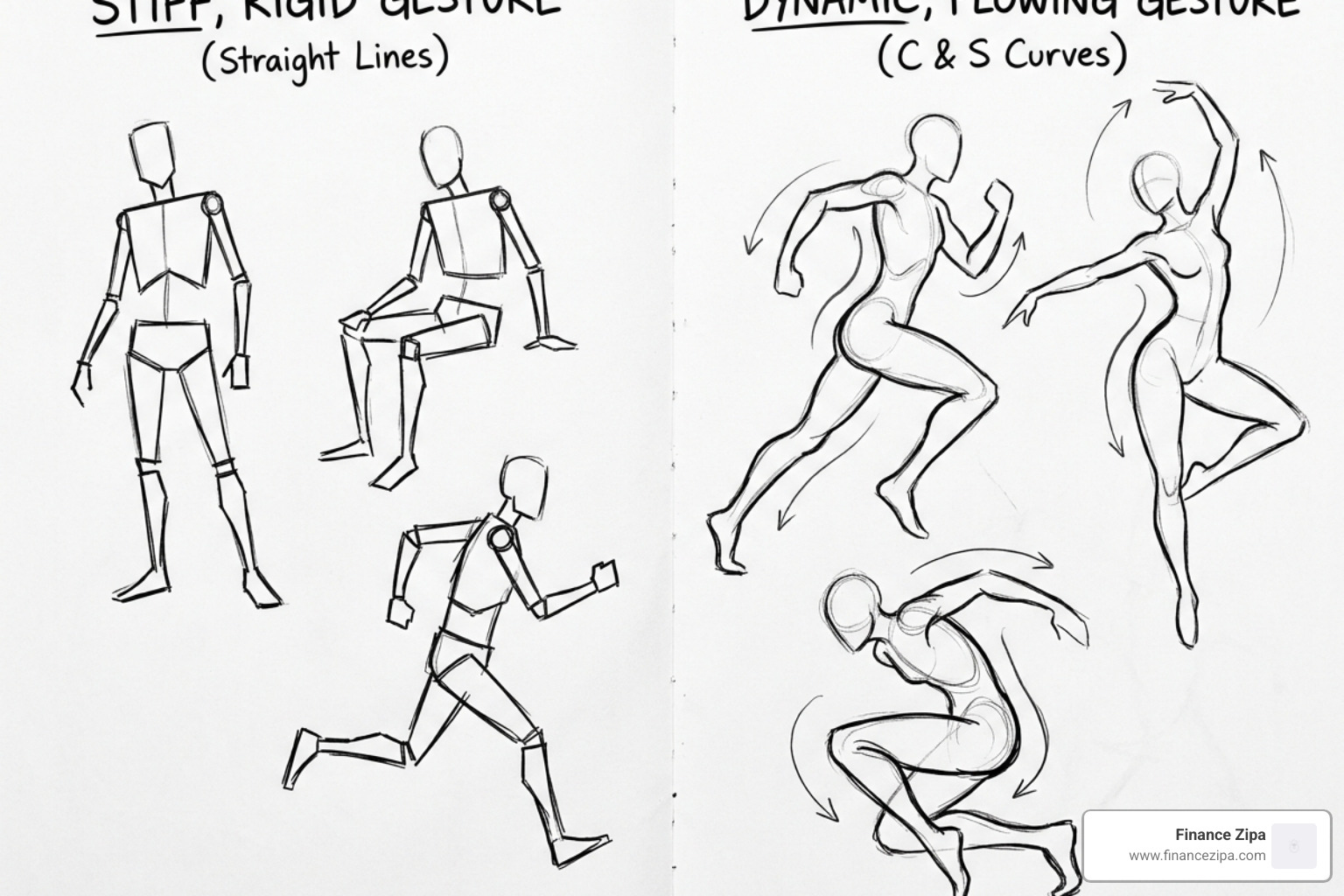
One of the biggest mistakes we see is artists jumping straight into muscles before capturing the “soul” of the pose. This leads to stiff, lifeless figures that look like police chalk outlines. Instead, start with a Line of Action. This is a single, sweeping C-curve or S-curve that captures the primary movement of the body.
We recommend doing 30-second gesture sketches as a warm-up. Don’t worry about fingers or toes; just focus on the flow. Procreate’s QuickShape feature is great here—if you draw a curve and hold your pen down, Procreate will snap it into a smooth arc, helping you define those long lines of action.
Mastering Construction with Procreate Anatomy Drawing Tips
Once you have the gesture, it’s time for “Mannequinization.” This is the process of building the body using 3D primitives: spheres for the head and joints, cylinders for the limbs, and boxes for the torso and pelvis.
If a limb looks too short or the perspective feels off (foreshortening), Procreate’s Liquify tool is your best friend. Set it to “Push” and gently nudge the forms until the perspective looks right. You can also use the Selection tool (set to Freehand) to grab a limb and “Warp” it into a better position without redrawing the whole thing.
Refining Details using Procreate Anatomy Drawing Tips
Now we add the “meat.” When drawing muscles, think about “Stretch and Pinch.” If a character is leaning to the left, the muscles on the right side of the torso are stretching (becoming longer and flatter), while the muscles on the left are pinching (becoming shorter and bunchier).
For advanced studies, try an Ecorche study—drawing the figure without skin to see how the muscle groups like the Deltoids (shoulders) and Trapezius (upper back) overlap. Hands and feet are often the “final boss” of anatomy. Simplify the palm into a flat box and the fingers into three-segmented tubes. Procreate’s ability to zoom in 1000% allows you to get those tiny fingernail details and knuckle wrinkles just right.
Advanced Blending and Shading for Realistic Volume
Anatomy isn’t just about lines; it’s about volume. To make a muscle look like it’s “popping,” you need to understand light source logic. We use Chiaroscuro—the contrast between light and dark—to define form.
Start by identifying your primary light source. This will create:
- The Highlight: The brightest spot where light hits directly.
- The Core Shadow: The darkest part of the muscle where it turns away from the light.
- Reflected Light: A soft light on the shadow side caused by light bouncing off the floor or surrounding skin.
Use Alpha Lock on your color layer so you can shade without worrying about going outside the lines. Alternatively, use a Clipping Mask on a layer above your base colors. This allows you to experiment with shadows non-destructively.
Digital Blending Techniques for Skin and Muscle
For smooth skin, we avoid over-blending, which can make the figure look like plastic. Instead, use a Soft Brush for large areas like the thighs or stomach, but keep some “hard” edges around the rib cage or knees to show the bone underneath.
Procreate’s Gaussian Blur (found in the Adjustments menu) can be used sparingly on a shadow layer to soften transitions. For more texture, try the Smudge tool with a “Turpentine” or “Stucco” brush to mimic the look of oil paint. This adds a “painterly” feel to the skin tones. Don’t forget Ambient Occlusion—these are the very dark, thin shadows found where two body parts touch, like the armpit or the fold of an elbow.
Frequently Asked Questions about Anatomy in Procreate
How do I fix stiff-looking figures in Procreate?
Stiffness usually comes from ignoring the “Line of Action” or drawing the torso as a solid, unmoving block. We suggest using the “Bean” method. Imagine the torso and pelvis as two parts of a kidney bean. If the body twists, the bean bends. In Procreate, draw these two shapes on a separate layer and use the Transform tool to rotate them against each other to create a more dynamic “twist” in the spine.
What is the best way to practice anatomy tracing digitally?
Tracing is a fantastic diagnostic tool if done correctly. Import a high-quality anatomy photo, lower its opacity to 30%, and create a new layer. Instead of just tracing the outline, try to identify and “wrap” the muscle groups over the bones. Use different colors for different muscle groups (e.g., red for the chest, blue for the shoulders). This forces your brain to recognize the 3D forms rather than just copying lines.
How many gesture drawings should I do daily for improvement?
Consistency beats intensity. We recommend 20 to 50 gesture drawings daily as a warm-up. Set a timer for 60 seconds per pose. The goal isn’t to make a pretty picture; it’s to build muscle memory and train your eye to see the “flow” of the human body. Over time, you’ll find that your finished illustrations feel much more natural and less “forced.”
Conclusion
Mastering the human form is a journey, not a destination. By combining the procreate anatomy drawing tips we’ve discussed—like using the 8-head system, mastering the “stretch and pinch” of muscles, and utilizing Procreate’s powerful digital tools—you’ll see a massive improvement in your character designs.
Remember to keep your workflow organized with layers, use references constantly, and don’t be afraid to make “ugly” sketches. Every “wrong” drawing is a step closer to a right one. Digital art is all about experimentation, so use those Liquify and Symmetry tools to your heart’s content!
At Finance Zipa, we are dedicated to helping you bridge the gap between technical software knowledge and artistic intuition. Whether you’re learning the basics of a torso or the complexities of facial expressions, we’re here to provide the resources you need to succeed.
Unleash your creativity with Finance Zipa and keep practicing—your next breakthrough is just a few sketches away!
